< Previous | Contents | Next >
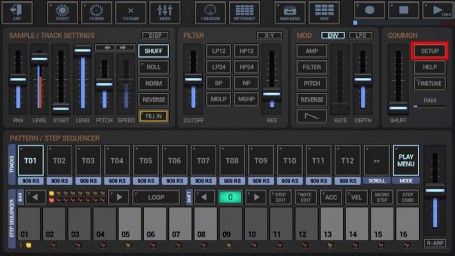
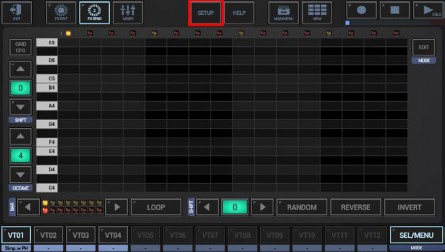
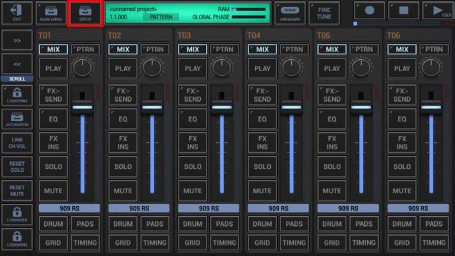
Show up the Setup Menu.
Depending on the used App, the Setup Menu location and its content might be different.
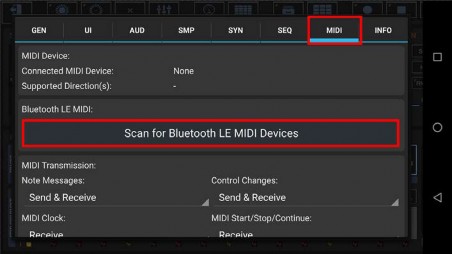
Then select the MIDI tab and press „Scan for Bluetooth LE MIDI devices“.
Depending on your verified age, you might see the following dialog that informs you about all security/privacy related aspects of the Bluetooth MIDI Connectivity.
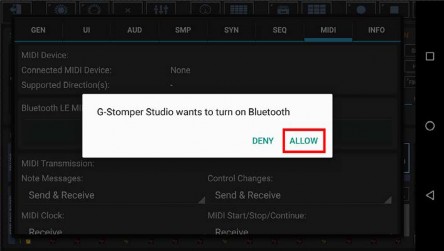
In the next step, we’ll ask you for the Bluetooth Scan/Connect permission, if not previously granted.
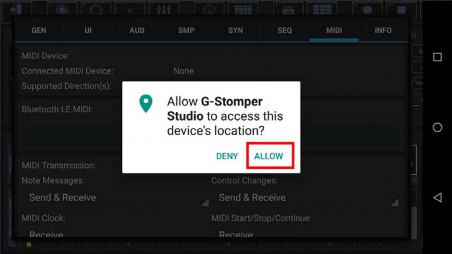
If Bluetooth is turned off, we’ll ask you for the permission to enable it. In this case press “Allow” to enable Bluetooth.
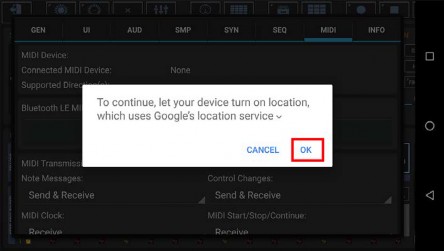
Once all required services are running, G-Stomper starts the scanning process.
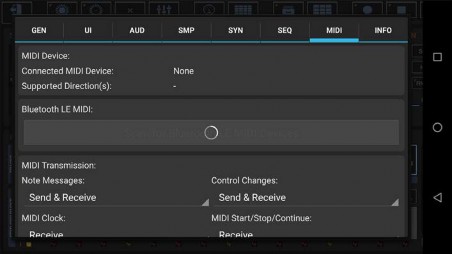
If a Bluetooth LE MIDI device is found, a popup is shown to ask you, if you want to use it with the app.
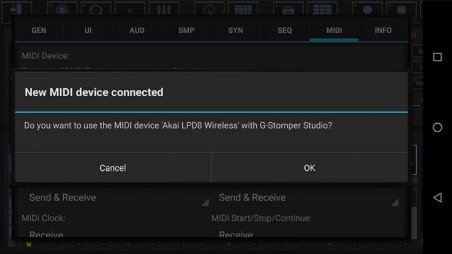
Confirm with OK.
Some Bluetooth LE devices just connect the device at this point.
Other devices require a pairing procedure. Android will guide you through that process if necessary.
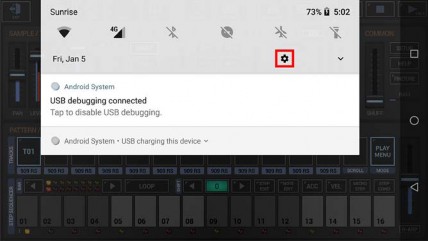
This often requires you to enter a product specific pin. You’ll find it in the user manual of your MIDI device.
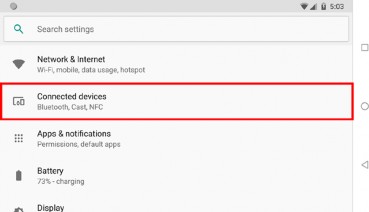
Once you’ve paired the device, it shows up on top of the MIDI settings.
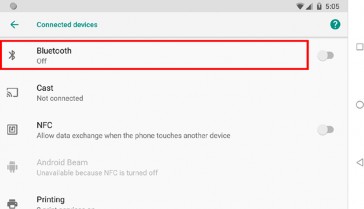
You’re now ready to use your Bluetooth LE MIDI device.
Some Bluetooth LE devices require some procedure in order to make them visible to your Android device. On the AKAI LPD8 Wireless for example, you have to press “Select + Pad4” on the controller before you can scan for it. If G-Stomper cannot find your Bluetooth MIDI device, please check the controller documentation and look for the chapter about Bluetooth pairing.
 Get this Doc as PDF